
How to set default color scheme in vim
After I’ve shown you Vim and explained the most essential commands, there is is another tip I’ll give to you. As described in the above linked article, Vim brings a really nice syntaxhightlighting implementation with it. Unfortunately, this is by default, depending on the file type and your monitor, difficult to read. So today I want to show you, how you can modify the Vim syntax highlighting scheme.
Change Vim syntaxhightlighting color scheme
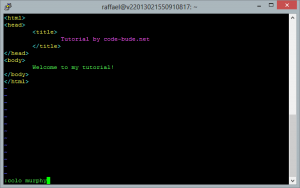
Once you’ve opened Vim, you can change the color scheme with the “colo”-command.
:colo murphy
As you can see, the color scheme is set off from the command mode. In this case, the command is “colo” followed by a space and the name of the color scheme you want to use. (If you like, you can use “colorscheme” instead of “colo”. “colo” is just a shortcut to “colorscheme”.)
 […]
[…]
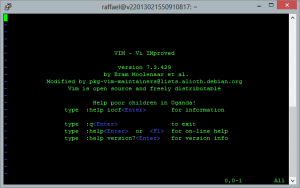 Vim is an open source text editor that runs on Linux, MacOSX, Windows and many other operating systems. If I had to describe it in just one word, then the first thing I can think of would be “powerful”. Vim supports syntax highlighting for really almost any format and has got many other extras.
 If you work with the Windows command prompt and want to copy files from or to a USB flash drive, then you get a problem. So how to show all drives in the commandline (cmd) from Windows? Without a list of all the drives you won’t know the drive letter of the USB flash drive and without this you won’t be able to access it.
 A few days ago I wrote about how you can flash OpenWRT on the TP-Link WR703N router and build a ~20$ cheap OpenWrt router this way. OpenWrt actually works quite well on the WR703N, but in retrospect the following problem arises.