
After I’ve shown you Vim and explained the most essential commands, there is is another tip I’ll give to you. As described in the above linked article, Vim brings a really nice syntaxhightlighting implementation with it. Unfortunately, this is by default, depending on the file type and your monitor, difficult to read. So today I want to show you, how you can modify the Vim syntax highlighting scheme.
Change Vim syntaxhightlighting color scheme
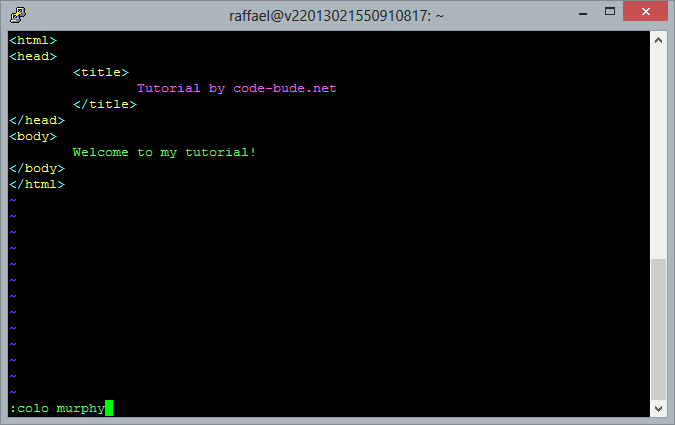
Once you’ve opened Vim, you can change the color scheme with the “colo”-command.
:colo murphy
As you can see, the color scheme is set off from the command mode. In this case, the command is “colo” followed by a space and the name of the color scheme you want to use. (If you like, you can use “colorscheme” instead of “colo”. “colo” is just a shortcut to “colorscheme”.)

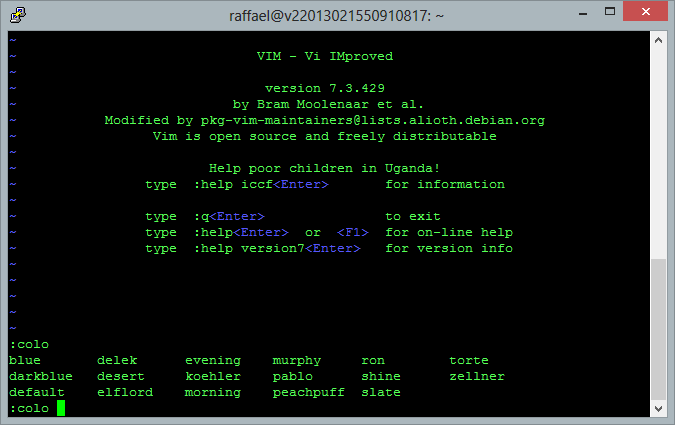
If you want to get a list of the installed color schemes, then just type “colo ” and press Ctrl d – so you should get a list of all available schemes.
Change Vim default color scheme
To change the pre-selected default color scheme in Vim, it must be set up in the Vim config. This config file is called “.vimrc” and can be located in your home directory (~/). You can definde the color scheme in .vimrc as you would do it directly in Vim, with just one differece: leave the “:” at the beginning of the command away. To change the default color scheme to “murphy”, the following steps would be necessary.
vim ~/.vimrc
In .vimrc you must add the following line or overwrite it (if it already exists).
colo murphy
To save your changes and close the config, type in :wq. Next time you start Vim now, your self-selected color scheme is used.
No products found.



YourDoll Customer Industrial facility Love Doll Photographs Itzel – 153 cm |5’0″C-Cup – WM DOLLS
Ty, it works!
After colo xxx I needed syntax on
Thanks, i could not find vimrc file to edit…. i´m using Windows 10 PRO 64bits.
VIM 8.1
Is there any other way i can set color permanently?.. i love the old Borland style (color blue)
Thanks again..
I realize I am responding to an old post but someone may search for same later.
You can create the file yourself:
vi ~/.vimrc
Then type in what you want and save it.
In mine, I put “syntax off” and that accomplished my goal of completely turning off the syntax highlighting. The default color scheme used dark colors such that when displayed on a dark terminal background it was nearly impossible to see the text I was editing. I am running Debian under Windows Subsystem for Linux on Win10.
Thanks. Really helpful. Now I can use elflord every time I start my Vim without cycling through the color schemes.
Thank you!