
Manipulate any program by using C#
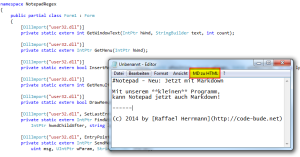 This article is going to be all about how you can control, customize and extend other programs using C#. As an example scenario we’re going to be extending the default Windows program Notepad with a custom function.
The C# application will modify all running instances of Notepad by adding a new button to the UI and listening for clicks on the button. A click on the button will convert the text in the Notepad text field into HTML using a Markdown parser (What is Markdown?) and display the HTML in our application.
If you follow the article, the finished product is going to look like this:
The article will have you construct the program step by step. If you want to read the full source code right away, […]
 Alright, the title might sound a bit sensational, but actually, “how do I get more visitors” is always an issue and the following article will hopefully highlight how to work towards this direction and what WDF*IDF has to do with it.
 Some days ago I was asked about my absolute favorite WordPress SEO plugins. At first I had to think about it for a while, because I wasn’t sure how to define what’s a “SEO plugin” and what isn’t. But now I’m sure.
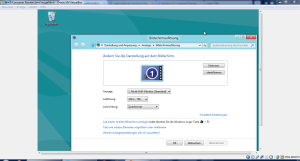 For almost two years, Windows 8 is now on the market. So enough time to find hundreds of reasons to set up a virtual machine running Windows 8. Unfortunately, you are greeted by the form factor of yesteryear already during the installation.
 A couple of days ago, a friend of mine (and co-worker) and myself talked about the topic of homeservers, because we both were looking for viable solutions to make our files available in our home network. During our discussion, the following points were brought up repeatedly: price / performance ratio, processing power, storage, security, performance, power consumption (or operating costs) and flexibility.