Bookstats will not continue operating in the near future. The app announcement cited serious health problems affecting the person who keeps the project running. No fixed shutdown date or export deadline was given, and nobody knows what will happen to the server data after a shutdown. If your library still lives in Bookstats, I would export it now rather than wait.
The question of alternatives also came up in the Reddit thread about the Bookstats shutdown and the Bookcrossing thread about alternatives. I personally pointed to LibrisLog because it can import Bookstats export files and is designed for people who want to keep control of their own library data. The source code is openly available on GitHub. That reply is what led to this migration guide.
I am the developer of LibrisLog, and I ran the migration myself using my own Bookstats export. It contained 178 book rows. The workflow is pleasantly straightforward, although I will admit that the first look at a field mapping can make an import tool feel a little like an Excel sphinx.
What LibrisLog provides for the migration
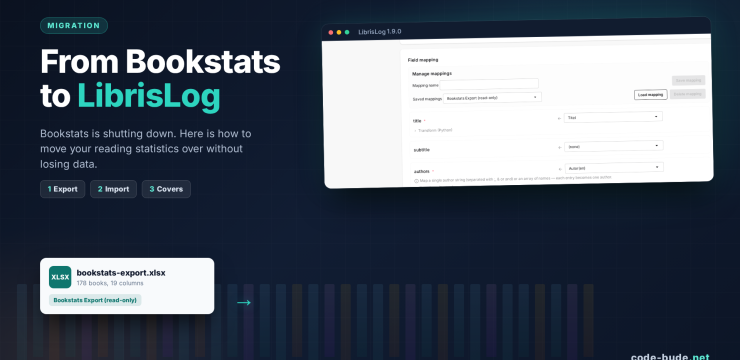
LibrisLog can process the Bookstats export file directly. The XLSX format has a predefined mapping called Bookstats Export (read-only), so you do not have to assign all 19 columns to a new data structure by hand. That fits the idea behind LibrisLog: the application should help you manage books without taking ownership of your data.
The mapping covers title, authors, ISBN, publication year, page count, tags, notes, rating, reading status, acquisition status, medium and the three date fields, among others. My LibrisLog 1.9.0 article covers other import improvements. The complete release notes are available as well. The process remains easy to check: simulate the import first, then explicitly confirm that the data should be written.
1. Export your library from Bookstats
Open Bookstats and export your library through the export page for your online account. Local app data can be saved through the export function in the app. The result is an XLSX file with one row per book.
My file contained 19 columns: title, author or authors, ISBN, ASIN, publication year, genre, page count, duration in hours and minutes, book type, price, received as, reading status, reading start, reading end, rating, category, notes and received on. Bookstats does not provide an official public column specification, so this describes the structure of the export file I actually used.
2. Upload the file to LibrisLog
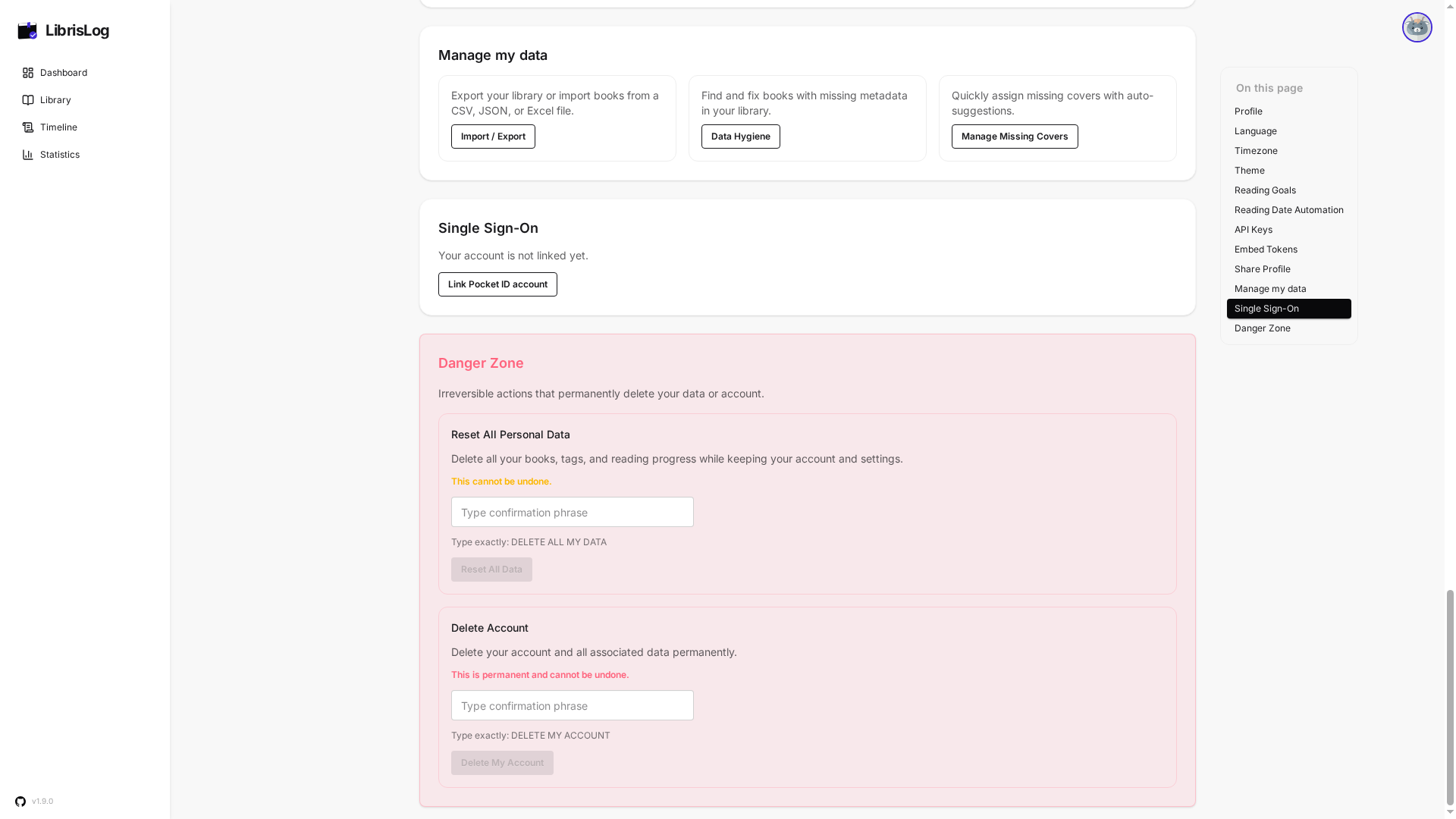
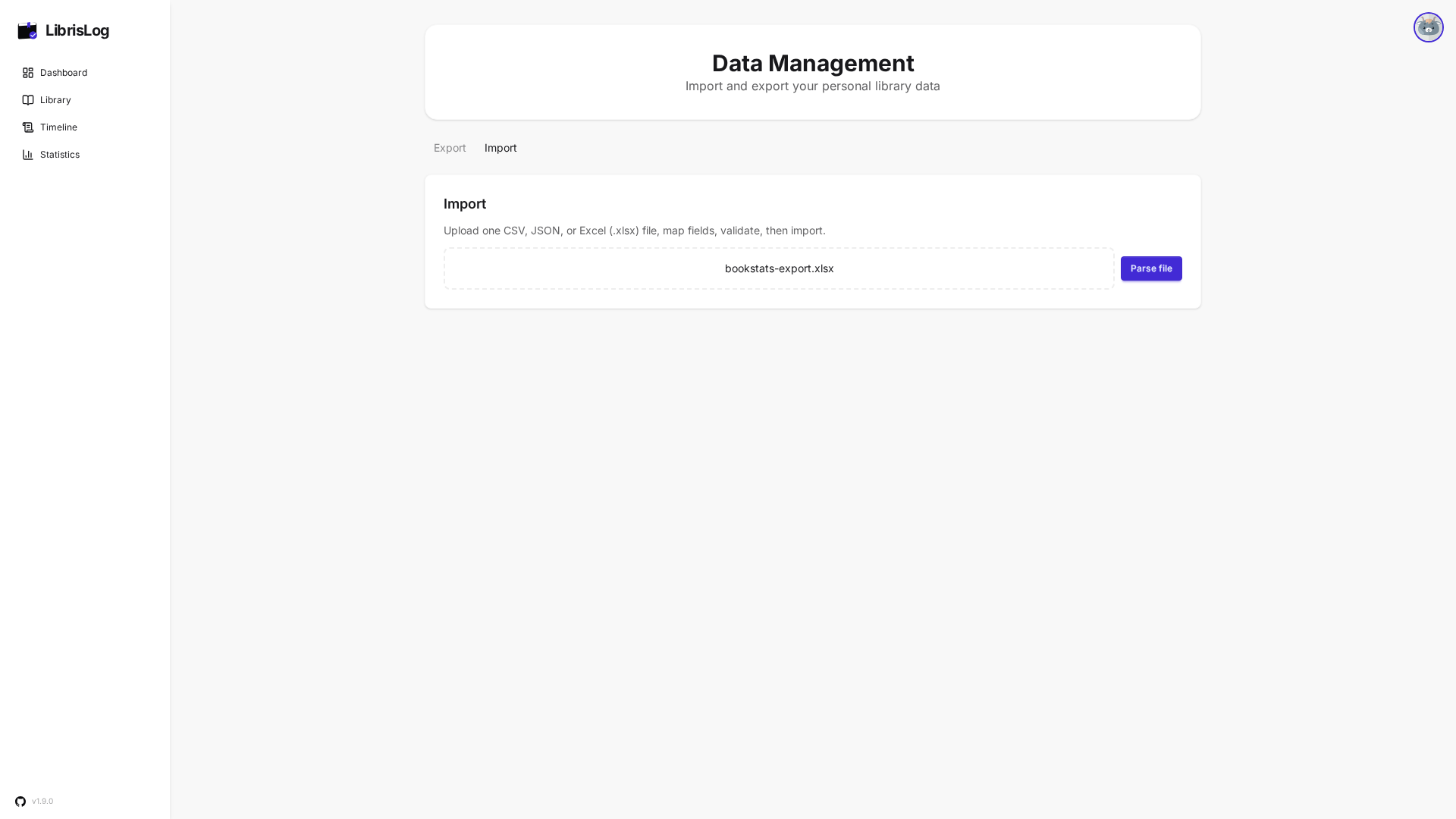
In LibrisLog, open your profile page and find Manage my data. The Import / Export card takes you to /data?tab=export. The official profile documentation covers this area as well. Open the Import tab and upload the Bookstats file by drag and drop or through the file picker.
Click Parse file. LibrisLog reads the table structure and then displays the Field mapping section.
3. Load the mapping and simulate the import
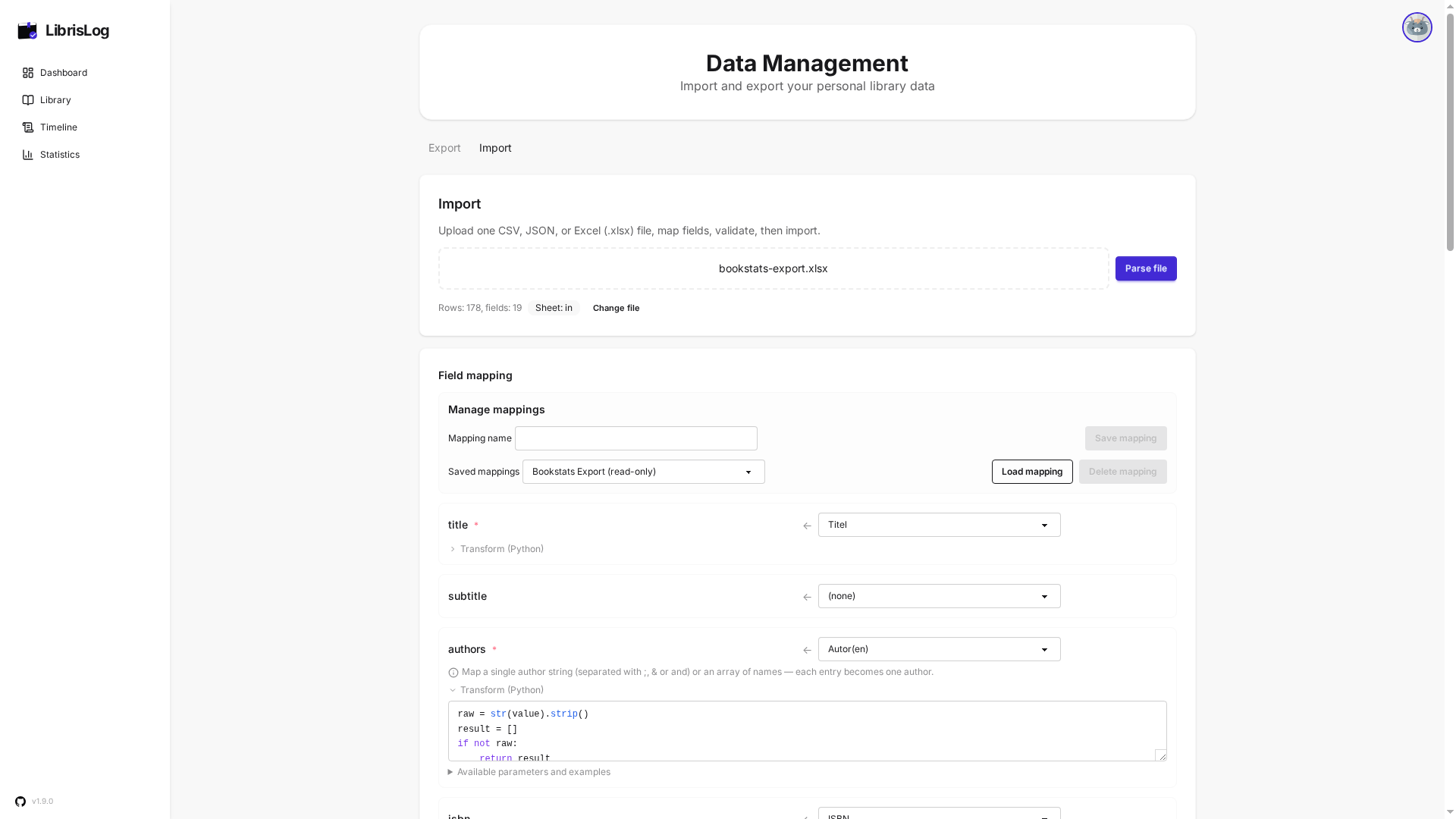
Under Saved mappings, select Bookstats Export (read-only) and click Load mapping. LibrisLog fills the field mapping automatically, which is exactly the sort of small convenience that makes a migration less tedious.
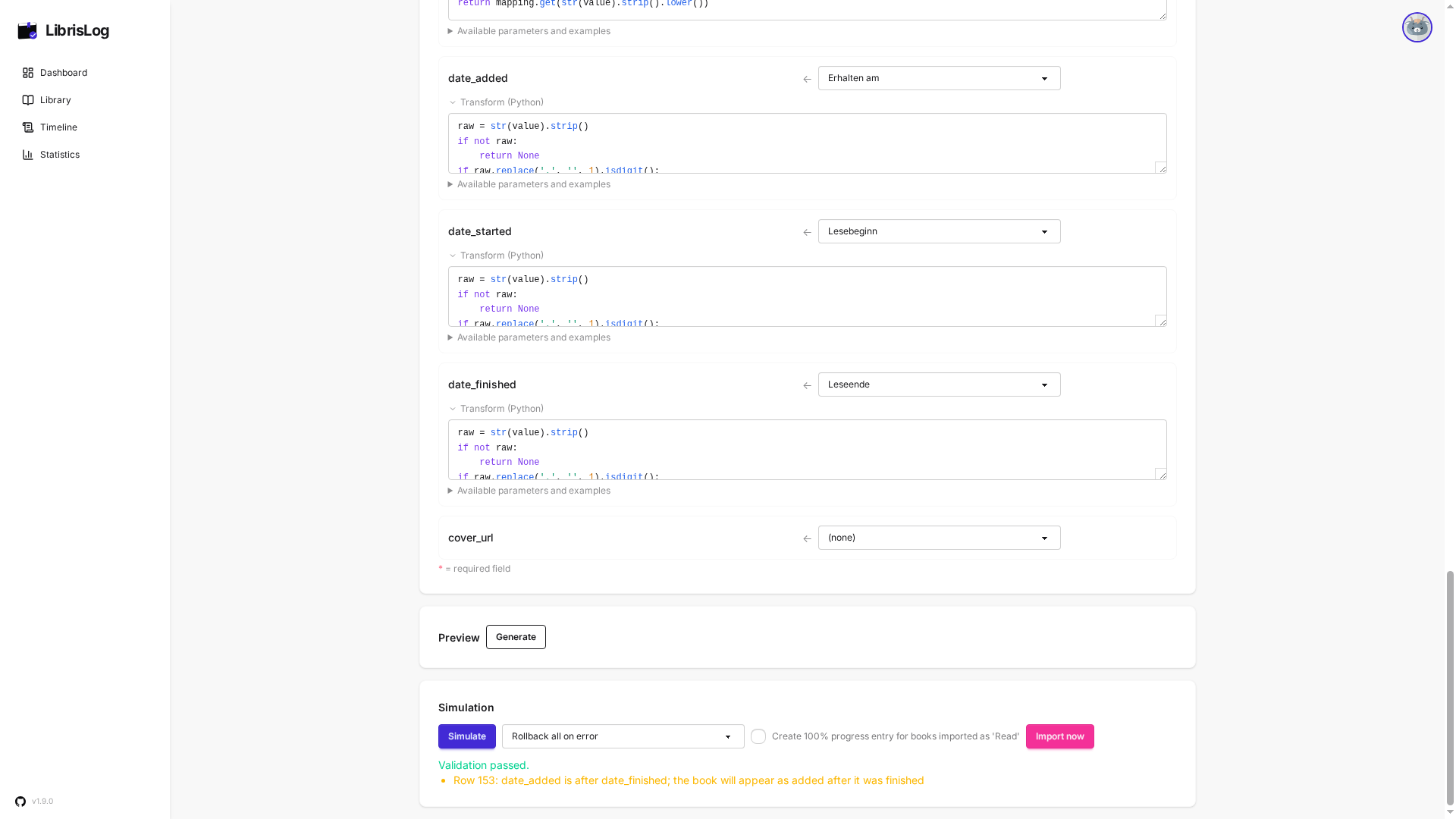
Review the mapping and run Simulate. This is a dry run and does not write anything to your library. In my run, LibrisLog processed 178 rows. Only after the preview looks plausible should you continue with Import now.
4. Start the actual import
If the simulation looks right, click Import now. LibrisLog shows the confirmation dialog This writes data to your library and cannot be auto-undone first. Confirm only after checking the field mapping and row count. This is deliberately not a magical undo button, so a backup before the import remains a good idea.
After the import, your books appear in the library. The book data comes across, but cover images are not part of the Bookstats file.
5. Restore missing covers
Because cover images are not included in the Bookstats export, it is normal to see books without covers after the migration even when their titles, authors and reading status arrived correctly.
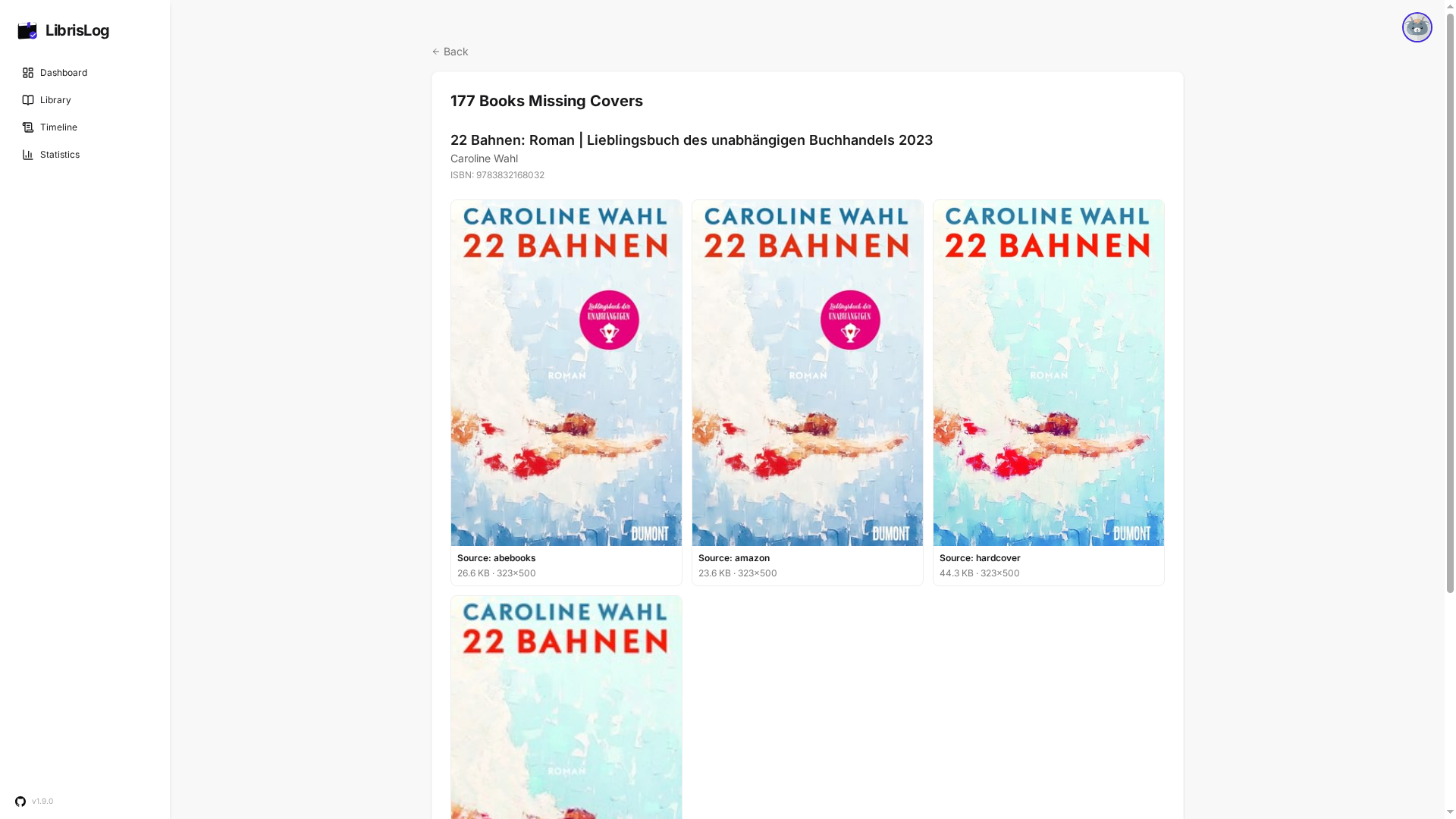
Open the profile page and the Manage my data section again. The Data Hygiene card leads to /data-hygiene. From there, open Manage Missing Covers. The profile documentation is a useful reference for this area too.
LibrisLog displays automatic cover suggestions from several sources. Pick a suggestion with keys 1 through 9. Press Enter or the right arrow to skip a book. If no suggestion fits, use Search Cover on Google or paste an image URL.
Conclusion
Moving from Bookstats to LibrisLog is not a manual restart. Export your library, upload the XLSX file, load the predefined mapping and check the result with Simulate first. Then confirm the import and restore missing covers with Manage Missing Covers.
I built and tested this workflow with my own export because a data migration should not depend on whether a service is still reachable tomorrow. The important book data comes across. Covers require one extra step, but the migration stays transparent and under your control.