
One morning, my backup tool failed for every GitHub repository it should mirror into my self-hosted Forgejo instance. The log contained ERR pkt-line 3: EOF git=push and Exiting with status=1. I first suspected the recently updated tool image. Plausible, quick to assume, and completely wrong.
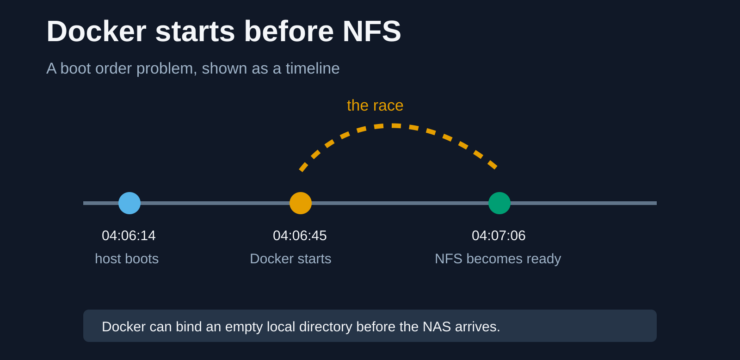
The real cause was one layer below. Forgejo stores its repositories on the NAS, mounted into the container through NFS. My Docker host booted at 04:06:14, the Forgejo container started at 04:06:45, and the NFS mounts became active at 04:07:06, with the last one arriving at 04:07:16. Docker was faster than the NAS.
This order is dangerous because Docker resolves bind mounts when the container starts and creates missing source directories itself. If the mount point is only a local directory at that moment, Docker binds that empty directory. When NFS appears later, the host sees the real data, but the container remains attached to its local shadow.
The wrong lead
Because the failure followed an image update, a regression seemed likely. Looking at the other services revealed the pattern: several more containers were affected, from the media collection to document storage. Another service wrote downloads to the local disk instead of the NAS, and Paperless did not notice files in its intake folder. Forgejo was simply the loudest complaint.
A hidden local directory also contained about 21 GB of old data from an earlier, unnoticed occurrence of the same problem, with some files dating from October 2025. The incident was not new, only loud enough this time to stop me dismissing it as an isolated error.
Two views of the same path
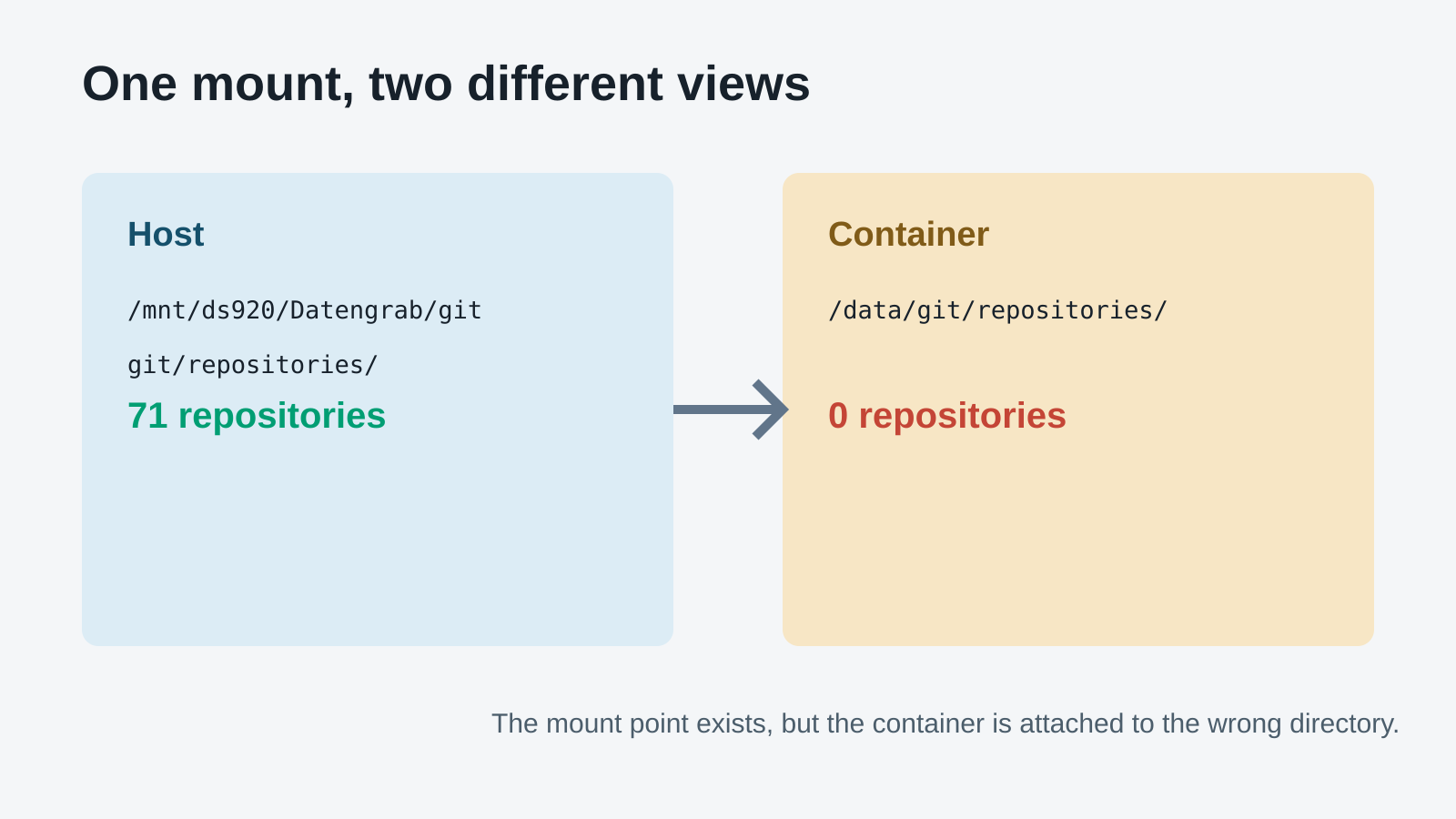
The diagnosis needs no special tooling. The bind mount maps host path /mnt/ds920/Datengrab/git to /data inside the Forgejo container. The repositories use a second git directory on the host because that is Forgejo’s own data directory. The two commands are shown below in guide step 2.
The host returned 71 and the container returned 0. A concrete host path is /mnt/ds920/Datengrab/git/git/repositories/codebude/anchor-cms.git; inside the container it becomes /data/git/repositories/codebude/anchor-cms.git. This is the important diagnostic: the host sees the truth through NFS, while the container sees a local decoy.
The Docker bind mount documentation describes the general behaviour well. It is not specific to Forgejo, although Forgejo makes it particularly unpleasant when every repository appears to have vanished.
The quick fix
Once the NFS mounts are active, restarting the affected containers is enough. Docker resolves the bind mount again when the container starts:
docker restart forgejo paperless
Forgejo and Paperless are the concrete examples here. For the other affected services, I use the same approach without blindly restarting the entire host. Then I repeat the container-side check, inspect the logs and run a functional test where possible.
Guide: recognize and fix the problem
1. Recognize the symptoms
Empty data sets, files a service cannot see, and successful writes to the wrong place are all suspicious. When several containers lose their data at once, I inspect the mounts before rolling back the most recently updated image.
2. Compare host and container views
I compare the Forgejo view on the host and inside the container using the same example:
# Host view through the NFS mount
find /mnt/ds920/Datengrab/git/git/repositories -maxdepth 2 -name '*.git' | wc -l   # 71

# The same location from inside the container
docker exec forgejo find /data/git/repositories -maxdepth 2 -name '*.git' | wc -l  # 0
Then I verify which host paths are actually mounted:
docker inspect forgejo --format '{{range .Mounts}}{{println .Source "->" .Destination}}{{end}}'3. Identify affected containers
I search running containers for bind mounts below the NAS path and review the list manually:
docker ps -q | xargs -r docker inspect --format '{{.Name}} {{range .Mounts}}{{if eq .Type "bind"}}{{println .Source "->" .Destination}}{{end}}{{end}}' | grep -i ds9204. Restart the affected containers
Once the mounts are definitely active, I restart the affected containers. With a Compose stack, a targeted docker compose restart is usually clearer than restarting everything. Docker’s documentation on automatic container startup is useful when checking restart policies.
5. Create the drop-in and reload systemd
In my case, docker.service had no dependency on the NFS mount units. With no configuration at all, Docker and the mounts start in parallel. It is a race, and Docker won this one.
I created this drop-in. According to systemd.unit, RequiresMountsFor= creates two things for the mount units providing the requested paths: a Requires= dependency and an After= ordering dependency.
# /etc/systemd/system/docker.service.d/10-wait-for-nas.conf
[Unit]
RequiresMountsFor=/mnt/ds920/Datengrab /mnt/ds920/Filme /mnt/ds920/Musik /mnt/ds920/homes
After=mnt-ds920-Datengrab.mount mnt-ds920-Filme.mount mnt-ds920-Musik.mount mnt-ds920-homes.mount
/mnt/ds920/Filme therefore becomes mnt-ds920-Filme.mount, with slashes replaced by hyphens. The details are covered in the systemd mount unit documentation.
sudo mkdir -p /etc/systemd/system/docker.service.d
sudoedit /etc/systemd/system/docker.service.d/10-wait-for-nas.conf
sudo systemctl daemon-reload
sudo systemctl restart docker
The hard variant means Docker does not start when a required mount fails. That is my preferred default because a visibly stopped service is safer than several containers silently writing into empty directories.
If availability matters more, use the soft variant. It is not the same as having no configuration: After= removes the race, while Wants= pulls the mount units into the same transaction. Docker then follows the ordering but continues even if a mount fails. Newer systemd releases also provide WantsMountsFor=, which looks like RequiresMountsFor= but creates Wants= instead of Requires=.
[Unit]
Wants=mnt-ds920-Datengrab.mount mnt-ds920-Filme.mount mnt-ds920-Musik.mount mnt-ds920-homes.mount
After=mnt-ds920-Datengrab.mount mnt-ds920-Filme.mount mnt-ds920-Musik.mount mnt-ds920-homes.mount
The only difference is what happens when a mount fails. With RequiresMountsFor=, Docker stays stopped. With Wants=, Docker starts anyway and consciously accepts the risk of binding an empty local directory. I still recommend the hard variant. The soft one is for cases where availability matters more than a safe stop.
Docker may start containers again according to their restart policies, so I check the mounts first and repeat the comparison afterwards.
6. Verify the dependency
systemctl show docker.service -p RequiresMountsFor --value
systemctl show docker.service -p After --value | tr ' ' '\n' | grep mnt
The output should contain the requested paths and their corresponding mount units. A reload alone is not proof that the dependency is correct.
Safely clean up local shadows
The NFS mount hides local directories underneath the mount points. A non-recursive bind of the root filesystem exposes the leftovers without carrying the nested NFS mounts along:
sudo mkdir -p /mnt/plainroot
sudo mount --bind / /mnt/plainroot          # non-recursive, NFS mounts are absent
du -sh /mnt/plainroot/mnt/ds920/*
findmnt -n -o FSTYPE -T /mnt/plainroot/mnt/ds920/Datengrab   # must show ext4, not nfs4
Before deleting anything, I check the exact target with findmnt. It must show a local filesystem such as ext4, not nfs4. The mount point directories themselves stay in place.
sudo rm -rf /mnt/plainroot/mnt/ds920/Datengrab/Downloads/*
sudo umount /mnt/plainroot
sudo rmdir /mnt/plainroot
I checked paths, timestamps and contents before removing the old data. A hidden local directory is not a backup, even when it briefly pretends to be one.
Conclusion
The backup tool was not at fault, and neither was the updated image. Docker was simply faster than the NAS and bound a local directory before NFS was ready. A few systemd lines prevent a small timing problem from causing a container to work unnoticed in the wrong directory.
There is also a related post about running Llama.cpp in Docker on WSL2.
Have you seen anything similar?
Leave a comment and share how you found the problem and made the setup reliable.