
In this guide, I will show you how I set up a local, OpenAI-compatible llama-server in Docker under WSL2 with CUDA acceleration, taking you from the basic arrangement to the first working request.
The finished setup runs llama-server in a container, uses the GPU through WSL2, and is configured with exactly one slot, -np 1, and at least 128k context. I need that size from my own experience because I run a coding agent such as OpenCode against it: smaller contexts trigger compaction too often and make the work tedious. A larger context would be nice, but it no longer fits into the VRAM of my setup. It is meant for one local workstation, not for a multi-user server where several people send requests at the same time.
Any client that speaks the OpenAI-compatible API can call the resulting endpoint, while the models run locally on your own machine instead of in the cloud. The long context is not an end in itself. Together with the single slot, it is the reason for this setup, because a GPU with limited VRAM should not reserve the KV cache several times without a good reason.
Requirements
You need Windows 11 or Windows 10 version 21H2 or later with WSL2, a current NVIDIA driver installed on Windows, and an NVIDIA GPU that supports CUDA and has at least 10 GB of VRAM. I am writing this from the perspective of my GeForce RTX 3080 with 10 GB, an Ampere card with Compute Capability 8.6 according to NVIDIA’s CUDA GPU list. It also works with less VRAM, but the example parameters at the end of this article will no longer fit. You also need a WSL2 distribution in which Docker can run, plus enough system RAM if models or MoE experts are placed partly on the CPU.
The surprising part is that the container-only route needs neither a Linux NVIDIA driver nor the CUDA toolkit inside WSL2. The Windows driver is exposed by WSL2 as libcuda.so, while the official CUDA image supplies its user-space libraries. Do not install the cuda, cuda-12-x, or cuda-drivers meta-packages in WSL2, because they try to install a Linux driver next to the WSL stub. The NVIDIA CUDA on WSL guide is unusually clear about this.
You only need the CUDA toolkit if you want to compile llama.cpp natively in WSL2. This guide takes the container route and does not build llama.cpp itself. WSL2 exposes the driver, the container provides the CUDA runtime and cuBLAS, and Docker exposes the GPU.
Prepare WSL2
First update WSL from a Windows PowerShell:
wsl --update
Then start your distribution and check the WSL driver stub:
nvidia-smi
ls /usr/lib/wsl/lib
nvidia-smi does not show exactly the same information under WSL2 as it does on native Linux, because some NVML features, including process and utilization queries, are limited. That does not mean the driver is broken. The important part is that the card is visible and that the Windows driver supports WSL2 GPU paravirtualization. Store models and Compose files inside the Linux filesystem, for example under /home/$USER/models, rather than under /mnt/c/.... Microsoft explicitly warns that cross-OS filesystem access can be significantly slower for Linux workloads.
If you plan to offload layers to the CPU, check the WSL2 VM memory limit as well. WSL2 receives roughly half of the Windows RAM by default, configured in %UserProfile%.wslconfig. A 26B MoE model can keep many GiB of expert weights in RAM, and the machine is remarkably good at reminding you of that precisely when VRAM is no longer the problem.
Docker Desktop or Docker Engine in WSL2?
Choose exactly one Docker route. The Docker Desktop WSL2 documentation explicitly warns against running Docker Desktop and a separately installed Docker Engine inside the distribution at the same time, because both compete for the socket and daemon.
Docker Desktop with the WSL2 backend
Docker Desktop is the alternative for readers who prefer a graphical interface: it provides the Windows and WSL2 integration, you enable Use WSL 2 based engine under Settings, General, and enable your distribution under Settings, Resources, WSL Integration. The Docker GPU documentation requires a current Windows NVIDIA driver, not the NVIDIA Container Toolkit inside the distribution.
The advantage is less manual configuration and a setup that follows the Windows installation more closely. Docker does not document every detail of how it mounts each WSL driver library, so I do not treat that as magic. I test GPU access directly with a container instead.
Docker Engine directly in the distribution
This route fits better if you want Docker without the Desktop GUI or if you simply feel more comfortable in a Linux environment, as I do. Here you install Docker Engine in the distribution and add the NVIDIA Container Toolkit. The Windows driver is still the only NVIDIA driver on the system.
curl https://get.docker.com | sh
sudo service docker start

curl -fsSL https://nvidia.github.io/libnvidia-container/gpgkey | sudo gpg --dearmor -o /usr/share/keyrings/nvidia-container-toolkit-keyring.gpg
curl -s -L https://nvidia.github.io/libnvidia-container/stable/deb/nvidia-container-toolkit.list |
  sed 's#deb https://#deb [signed-by=/usr/share/keyrings/nvidia-container-toolkit-keyring.gpg] https://#g' |
  sudo tee /etc/apt/sources.list.d/nvidia-container-toolkit.list
sudo apt-get update
sudo apt-get install -y nvidia-container-toolkit
sudo nvidia-ctk runtime configure --runtime=docker
sudo service docker restart
If your distribution uses systemd, you can use systemctl instead of service. Microsoft documents systemd in its WSL guide. Docker Desktop remains the more convenient alternative for readers who prefer a graphical interface and less manual work, while I use the Docker daemon directly inside WSL2.
Test GPU passthrough
Because both Docker variants run the test inside the same WSL2 distribution, use the same short GPU test for both:
docker run --rm --gpus all ubuntu nvidia-smi
If your GPU does not appear here, do not debug llama.cpp yet. Check the Windows driver, wsl --update, the selected Docker route, and, for Docker Engine, the NVIDIA runtime registration.
The llama.cpp image
The official llama.cpp Docker documentation distinguishes between server, full, and light. For an OpenAI-compatible endpoint, server-cuda or server-cuda13 is enough. The CUDA 12 image belongs to the CUDA 12 family, the CUDA 13 image to the CUDA 13 family; both contain user-space runtime libraries, while the driver comes from the Windows host.
Both image families are suitable for current NVIDIA GPUs. The choice depends on the Windows driver: CUDA 13 applications require at least the R580 branch, while NVIDIA names R615 or newer for new CUDA 13.4 features; CUDA 12.8 on Windows requires at least 570.65. These values are in the CUDA release notes. If the driver is not clearly current, server-cuda is the conservative choice. There is no reliable official statement that CUDA 13 is faster or slower on Ampere.
Tags are either floating, such as server-cuda, or build-pinned, such as server-cuda-b4738. For a reproducible setup, choose an existing build tag from the GHCR registry at download time. The llama.cpp documentation does note that GPU images are currently built by CI but not runtime-tested there.
Choosing a model for 10 GB
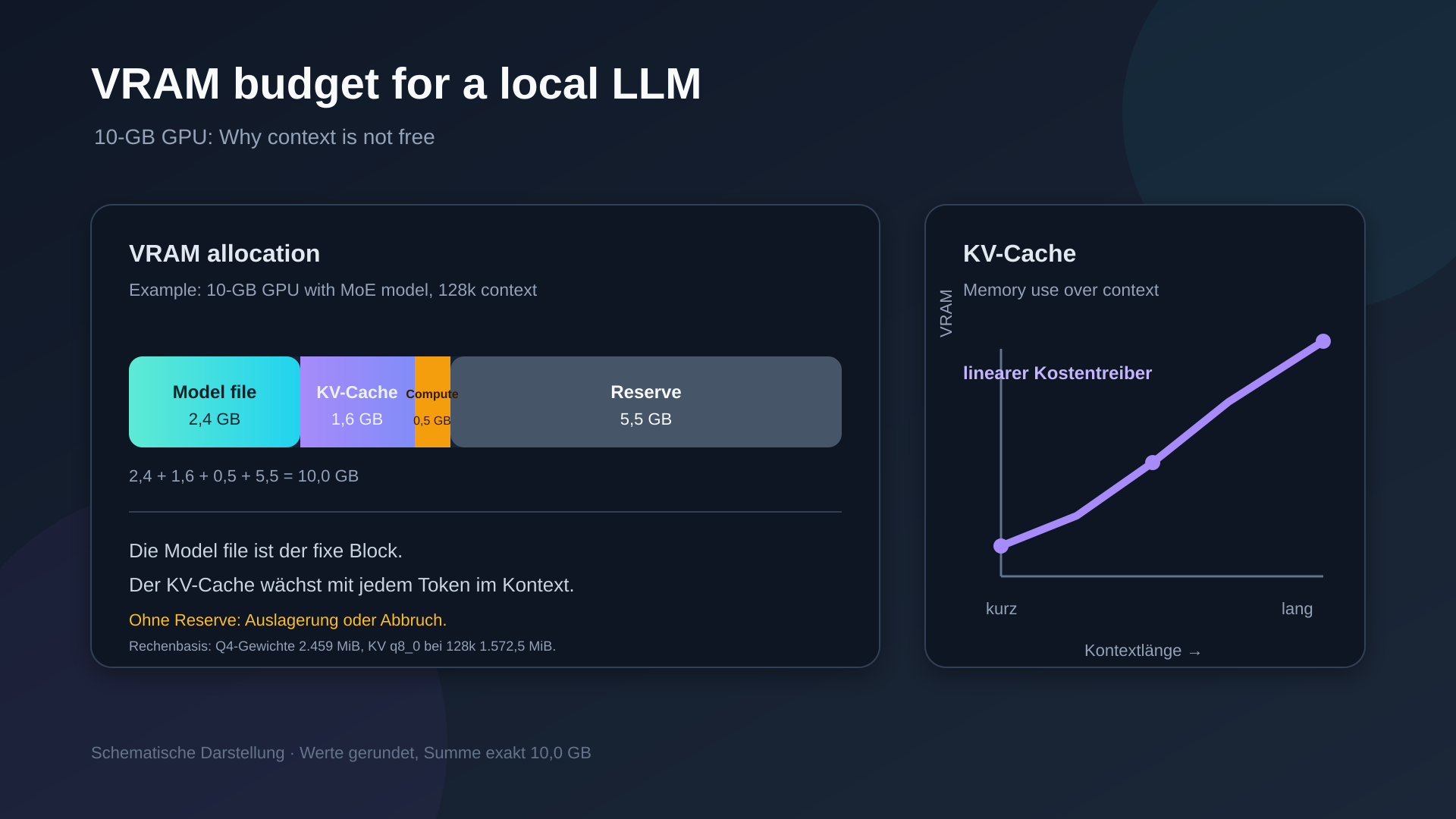
With 10 GB, the GGUF file is only half the story. The KV cache is usually the decisive item. These are the actual file sizes read from the Hugging Face repositories, not estimated model sizes:
| Model | File | Size | Assessment |
|---|---|---|---|
| Qwen2.5-7B-Instruct | Q5_K_M / Q4_K_M | 5.44 / 4.68 GB | The easiest general-purpose choice, because four KV heads keep the cache small. |
| Qwen3-8B | Q5_K_M / Q4_K_M | 5.85 / 5.03 GB | A newer generation that still leaves room at 32k with q8 KV. |
| Llama 3.1 8B Instruct | Q5_K_M / Q4_K_M | 5.73 / 4.92 GB | A useful reference model with a large ecosystem. |
| Gemma 3 12B IT | Q4_K_M / Q5_K_M | 7.30 / 8.45 GB | Sliding-window attention keeps the cache comparatively small. |
| Mistral Nemo 12B | Q4_K_M | 7.48 GB | Interesting for multilingual use, but 128k needs KV quantization. |
| Qwen2.5 14B Instruct | IQ4_XS / Q4_K_S | 8.12 / 8.57 GB | Use q8 KV and roughly 8k context only. |
| Qwen3 14B | Q4_K_M | 9.00 GB | A borderline option with very little room for cache and compute. |
| phi-4 14B | IQ4_XS | 7.94 GB | The heaviest KV cache in this list, so keep the context small. |
The practical rule is simple: 7B and 8B models work well in Q5 or Q6 with a large context, while 12B and 14B usually need Q4 and less context. A 14B Q4_K_M file at 8.99 GB is already too close to the edge for a 10 GB card. The KV figures are calculated from model configurations, not measured.
The KV cache is the real bottleneck
The KV cache stores the intermediate results of tokens that have already been processed, so the model does not have to calculate them again for the next token. Quantizing it controls how many bits are used for those cached values, and that is separate from quantizing the model itself, meaning its weights.
A useful estimate is:
VRAM ≈ GGUF file + KV cache + compute/activation buffers + reserve

KV cache = 2 × layers × KV heads × head dimension × context × bytes per value
F16 uses roughly two bytes per value, q8_0 roughly one byte, and q4_0 roughly half a byte, before quantization overhead. For Llama 3.1 8B, Hugging Face lists 15.62 GB for 128k with F16 KV. That is why KV-cache quantization is not a minor tuning detail here, but the difference between 128k fitting and the process dying during startup.
I set both cache types explicitly and symmetrically:
-ctk q8_0 -ctv q8_0
Symmetry matters because the CUDA build normally provides optimized Flash Attention kernels for q4_0/q4_0, q8_0/q8_0, f16/f16, and bf16/bf16. Other pairs may fall back to a less suitable kernel with a warning. q4_0 saves more VRAM but costs quality, so q8_0 is my starting point.
Current builds default -ngl to auto and --fit to on; llama.cpp adjusts unset arguments to available memory and keeps a default target margin of 1024 MiB per device. I still set the relevant values explicitly in a tutorial so a later build cannot silently choose a smaller context. -ngl 99 effectively means all layers, -c or --ctx-size sets context, -b is the logical batch size, and -ub is the physical batch size. If the process runs out of memory, I first inspect the startup log, then lower -ub and verify the actual compute buffer rather than presenting an unproven memory estimate as a measurement.
A 26B MoE model on 10 GB: Gemma 4 26B A4B
The file used here comes from the unsloth/gemma-4-26B-A4B-it-GGUF repository and uses the UD-IQ3_XXS quantization at 3.0625 bits per weight. It is a 10.62 GiB file with 25.23 billion parameters, about 4 billion of them active. The memory and speed figures below refer to this exact quantization; a different quantization will produce different values. Gemma 4 26B A4B has 128 experts, eight active per token. The dense parts stay on the GPU while the experts can move to system memory. That reverses the usual VRAM question.
128k context fits on an RTX 3080
The measurement confirms it: with all experts in RAM, Gemma 4 26B A4B uses 6,564 MiB of VRAM at 128k context. After subtracting the desktop already running, only about 0.5 to 2 GB is practically available. Twelve expert layers alone need roughly 3.5 GiB. At 128k, there is therefore no room to move expert layers back to the GPU. For 128k, -ncmoe 30 remains the recommendation. The faster split with 18 layers on the CPU is an option for short contexts: the benchmark measures it with 512 to 2,048 prompt tokens and 128 generated tokens, where the KV cache uses almost no space and the 3.5 GiB of experts fit.
Sliding-window attention keeps the KV cache small
Twenty-five of 30 layers use a 1024-token window; only five retain the full context. With -np 1 -ub 1024, SWA costs about 212.5 MiB with q8_0, while full attention grows to 1360 MiB at 128k. Together that is 1572.5 MiB. --swa-full would need about 13.6 GiB for SWA alone.
Tensor shifting with -ot
-ot means --override-tensor and was introduced by PR #11397. Its syntax is <tensor pattern>=<buffer type>; a C++ regex is applied with regex_search to GGUF tensor names, and the first matching rule wins.
-ot ".ffn_(up|down|gate|gate_up)_(ch|)exps.weight=CPU"
-ot "exps=CPU"
CPU and CUDA0 are targets; exps is only the pattern. Gemma 4 fuses gate and up into ffn_gate_up_exps, so a pattern naming only ffn_up_exps misses it.
--cpu-moe and --n-cpu-moe
--cpu-moe moves all MoE experts to the CPU, practically like --n-cpu-moe 30 or -ot "exps=CPU". --n-cpu-moe N moves the first N layers, blk.0 through blk.(N-1). The common claim that it counts down from the highest layers is wrong. Current builds use --load-mode none instead of the removed --no-mmap.
What the layer regex really does
-ot "blk.(1?[0-9]|20).=CUDA0,exps=CPU"
blk.(1?[0-9]|20). matches layers 0 through 20. Since it comes before exps=CPU, those experts stay on the GPU; only layers 21 through 29 go to the CPU.
A complete 128k configuration
For the first run, use the measured UD-IQ3_XXS variant:
-hf unsloth/gemma-4-26B-A4B-it-GGUF:UD-IQ3_XXS
-c 131072 -np 1 -ngl 999 -ncmoe 30
-fa on -ctk q8_0 -ctv q8_0 -b 2048 -ub 512
--load-mode none --cache-ram 0 -fit off --fit-print on
The benchmark with -ncmoe 30 and all experts on the CPU measures 6,564 MiB of VRAM and 20.4 tokens per second at 128k. At 32k, the same configuration uses 5,084 MiB and reaches 20.6 tokens per second. That is 1,480 MiB more for four times the context, while the token rate remains practically unchanged.
Measurement conditions
Measurement conditions: Measurements were taken on an NVIDIA GeForce RTX 3080 with 10,240 MiB VRAM and driver 610.57.01 (KMD 610.88, CUDA UMD 13.3), running Windows with WSL2, kernel 6.6.87.2-microsoft-standard-WSL2. The setup used Docker 29.4.3, NVIDIA Container Toolkit 1.19.1 and llama.cpp 0.5.0-dev, build 11151, commit bd4f514db. The full-cuda image was used for the benchmark and server-cuda for the server runs. The hardware provided 24 CPU threads and 32 GB RAM. The throughput measurement used -ngl 999, -fa 1, q8_0 KV, -p 512,2048, -n 128 and -r 3. The server runs used -np 1, -fa on and q8_0 KV.
This matters: the desktop occupied 1,697 MiB of VRAM before the first server run. During the second run, it occupied 3,218 MiB because another container was still running. That left substantially less than 10,240 MiB available to llama.cpp; in practice, about 8.5 to 9.5 GB were usable. Values around 9.8xx MiB therefore look contradictory only if nominal VRAM is confused with the amount actually free.
Throughput measurement with llama-bench
The benchmark measures steady-state operation: prompts of 512 and 2,048 tokens are long enough that startup costs do not dominate, and generation runs for 128 tokens. When very short prompts are used, the result is dominated by startup behavior and says nothing useful about sustained operation. The model size is 5.07 GiB for the 7B model and 10.62 GiB for the 26B A4B model with 3.0625 bpw and 25.23 B parameters.
| Model | pp512 | pp2048 | tg128 |
|---|---|---|---|
Qwen2.5-Coder-7B-Instruct Q5_K_M | 4,786.38 ± 170.71 | 4,727 ± 7.97 | 111.77 ± 0.21 |
Gemma 4 26B A4B UD-IQ3_XXS, experts on CPU in all 30 layers | 486.07 ± 11.35 | 470.15 ± 5.85 | 21.12 ± 3.49 |
Gemma 4 26B A4B UD-IQ3_XXS, experts on CPU in 18 layers | 797.99 ± 17.02 | 734.35 ± 4.31 | 32.85 ± 4.82 |
All figures are tokens per second. The ratio of prompt processing to generation is about 43 to 1 for the 7B model and about 23 to 1 for the MoE model. Prompt processing is therefore many times faster than generation even with experts offloaded to the CPU; it simply depends less on the GPU than in an all-GPU setup.
Server runs, memory and context
| Configuration | VRAM under load | Gen tok/s |
|---|---|---|
| 7B, 128k, all on GPU | 9,822 MiB | 108.4 |
Gemma 26B --cpu-moe, 128k | 6,564 MiB | 20.4 |
Gemma 26B --cpu-moe, 32k | 5,084 MiB | 20.6 |
The direct comparison of the same configuration at 128k and 32k shows that 6,564 versus 5,084 MiB means 1,480 MiB more memory for four times the context, while the generation rate remains practically identical at 20.4 and 20.6 tokens per second. The KV cache is therefore a pure memory cost, not a speed cost. I do not use the prompt rates from this short server measurement for evaluation.
Speculative decoding with MTP
Speculative decoding lets the model predict several possible next tokens and then checks those suggestions in one pass. When they match, several tokens can be accepted at once; the output itself remains unchanged. This run used the MTP head from the same repository and the file mtp-gemma-4-26B-A4B-it.gguf. All runs used 32k context unless noted otherwise.
| Configuration | Gen tok/s | Acceptance | Mean length | Gain |
|---|---|---|---|---|
| Baseline without MTP | 20.39 | |||
MTP, --spec-draft-n-max 2 | 26.24 | 0.609 | 2.22 | 1.29× |
MTP, --spec-draft-n-max 4 | 21.23 | 0.420 | 2.66 | 1.04× |
MTP, n-max 4, --spec-draft-p-min 0.75 | 25.95 | 0.670 | 2.70 | 1.27× |
| MTP, n-max 2, 128k | 25.85 | 0.609 | 2.22 | 1.27× |
MTP delivers a real 1.27× to 1.29×, without quality loss and without a second model. The head is 0.46 GB; memory use rises from 5,084 to 5,689 MiB, or about 600 MiB.
--spec-draft-n-max 2 is better than 4 here: 26.24 versus 21.23 tok/s. Acceptance falls from 61 to 42 percent when four tokens are guessed at once. The default of 2 in the Unsloth documentation is therefore the right choice for this run. With --spec-draft-p-min 0.75, n-max 4 rises from 21.23 to 25.95 tok/s because blocks with uncertain predictions are stopped early; acceptance consequently rises to 0.670, the best value in the run.
MTP also works at 128k and produces the same gain as at 32k. The draft-context issue at a large --ctx-size described in the llama.cpp Speculative Decoding documentation does not occur here. Combining MTP with 18 layers on the GPU produces 34.97 tok/s, but changes two things at once: compared with 32.85 tok/s without MTP at the same layer split, only about 6 percent of the result is attributable to MTP. The additional benefit of MTP becomes smaller as more experts are placed in VRAM. This layer split is not available at 128k.
Start the run like this:
llama-server -hf unsloth/gemma-4-26B-A4B-it-GGUF:UD-IQ3_XXS
  --cpu-moe -ngl 999 -c 32768 -np 1
  --cache-type-k q8_0 --cache-type-v q8_0 -fa on
  --spec-type draft-mtp --spec-draft-n-max 2
Docker start for a normal 7B model
docker run -d --name llama-server
  --gpus all
  --restart unless-stopped
  -p 8080:8080
  ghcr.io/ggml-org/llama.cpp:server-cuda13
    -hf unsloth/Qwen2.5-Coder-7B-Instruct-128K-GGUF:Q5_K_M
    -ngl 99 -c 32768
    -ctk q8_0 -ctv q8_0
    -fa on -b 2048 -ub 512 -np 1
    --host 0.0.0.0 --port 8080
For CUDA 12, replace server-cuda13 with server-cuda. The Hugging Face cache stays inside the distribution, following the Hugging Face download documentation, not under /mnt/c.
Compose version
services:
  llama-server:
    image: ghcr.io/ggml-org/llama.cpp:server-cuda13
    container_name: llama-server
    restart: unless-stopped
    ports:
      - "8080:8080"
    gpus: all
    command:
      - -hf
      - unsloth/Qwen2.5-Coder-7B-Instruct-128K-GGUF:Q5_K_M
      - -ngl
      - "99"
      - -c
      - "32768"
      - -np
      - "1"
      - -ctk
      - q8_0
      - -ctv
      - q8_0
      - -fa
      - on
      - --host
      - 0.0.0.0
      - --port
      - "8080"
Compose supports gpus: all as the short form. If you prefer the classic deploy syntax, use this GPU section:
deploy:
  resources:
    reservations:
      devices:
        - driver: nvidia
          count: all
          capabilities: [gpu]
capabilities is required, and count and device_ids are mutually exclusive. Both forms end up as the same device request for the Docker daemon.
Test the OpenAI-compatible endpoint
curl http://localhost:8080/health

curl http://localhost:8080/v1/chat/completions
  -H "Content-Type: application/json"
  -d '{
    "model": "local",
    "messages": [{"role": "user", "content": "Explain in one sentence why -np 1 saves VRAM."}],
    "temperature": 0.2,
    "max_tokens": 80
  }'
The server image also includes a health check for /health. It also ships with a web or chat UI, as the server documentation describes; the full image is not required for that. If the response does not arrive, first inspect docker logs llama-server, the Hugging Face model cache, and whether you actually passed --gpus all.
Common pitfalls
- GPU missing in WSL: the Windows driver or WSL2 GPU support is incomplete, or Docker Desktop and Docker Engine were mixed.
could not select device driver: Docker Engine is missing the NVIDIA Container Toolkit, or the daemon was not restarted afternvidia-ctk runtime configure.- Linux driver installed in WSL: remove it and use the Windows driver; WSL expects the forwarded stub.
- OOM despite a plausible file size: the KV cache, compute buffers, or reserve were omitted; set q8 KV, check context, lower
-ub, and read the load log. - 14B starts only with a tiny context: the GGUF file consumes most of the 10 GB, leaving q8 KV and roughly 8k as the realistic range.
- MoE regex moves the wrong tensors: the first
-otrule wins; putexps=CPUbefore a layer rule when all experts should move to the CPU. - MoE starts but RAM runs out: experts are in RAM, and pinned host buffers plus the prompt cache add to the budget.
- Old
--no-mmapis rejected: current builds use--load-mode none. - Context appears smaller:
--fitadjusts unset parameters automatically; during manual tuning use-fit offand inspect--fit-print. - Models are slow: files under
/mnt/csuffer from cross-OS filesystem access; move them into the Linux filesystem.
Conclusion
The measurements make the trade-off concrete: four times the context costs 1,480 MiB of additional memory, but has practically no effect on the generation rate. With all experts on the CPU, the MoE model remains memory-efficient, while MTP raises generation to between 25.85 and 34.97 tokens per second depending on the configuration.
An RTX 3080 with 10 GB is perfectly usable for llama.cpp in Docker under WSL2, but it requires different priorities from a large Linux server: 7B and 8B models work well with q8 KV and a large context, 12B and 14B models are possible with Q4 and less context, and an MoE such as Gemma 4 26B A4B can reach 128k context with CPU experts. The limiting factor is not the image, but the KV cache, which must not be multiplied by unnecessary parallel slots.
MoE offload is not a free upgrade, but a deliberate bet on system RAM and prompt time. It makes sense for one local user when a large context matters more than maximum speed. Anyone looking for several users, high parallelism, or steady server throughput is simply asking a 10 GB card to wear a larger jersey.

0 Comments